
Sound A/B Test
Use Tools → Sound A/B Test to switch between sound setups while listening to the same music. The tool guides you through choosing a comparison, selecting options and starting a listening session.
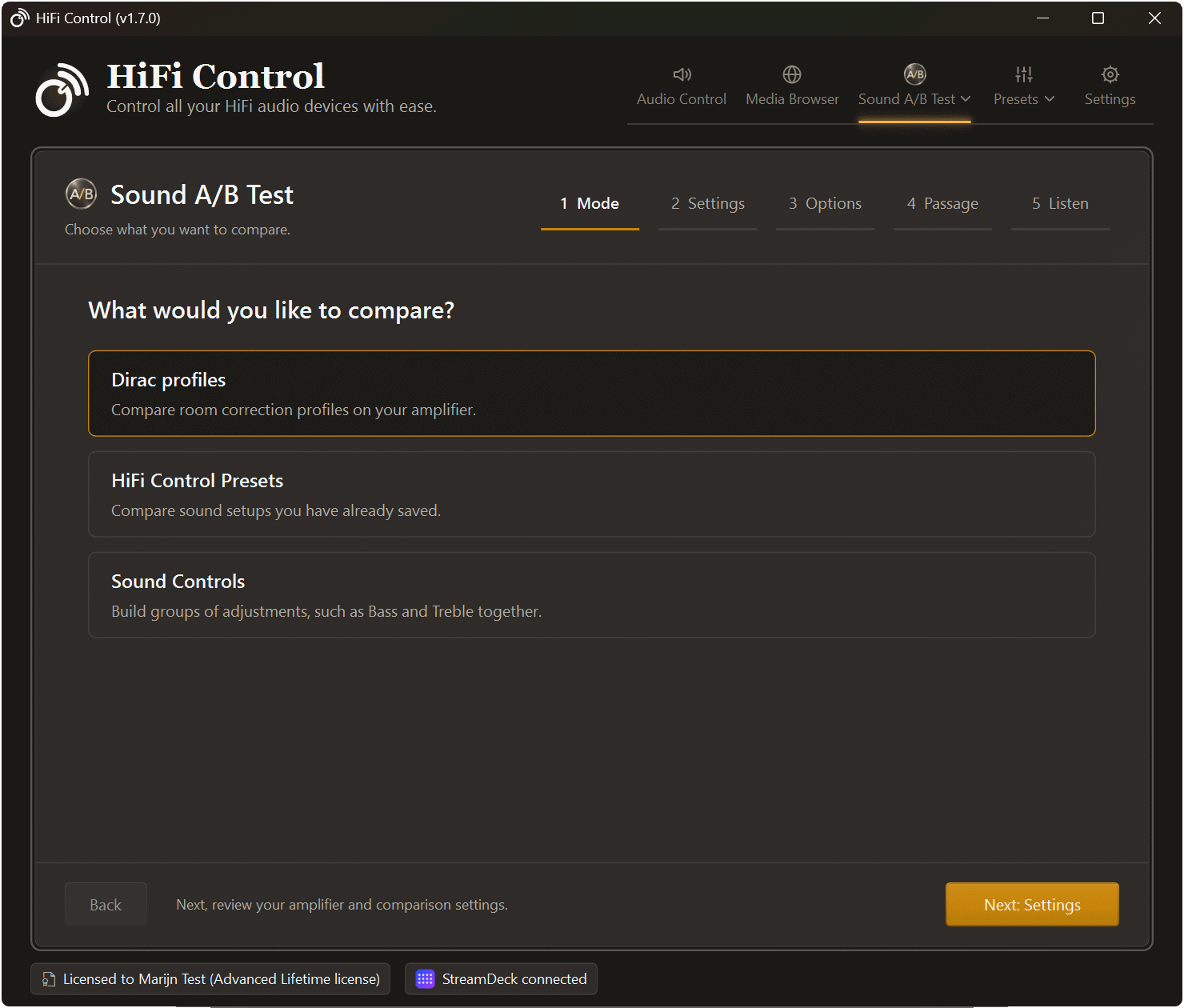
The mode selection step in HiFi Control v1.7.0.
Choose what to compare
Section titled “Choose what to compare”| Mode | What it compares | Requirements |
|---|---|---|
| Dirac profiles | Profiles already stored on the amplifier, optionally including Dirac Off | A supported BluOS amplifier with Dirac Live and configured profiles |
| HiFi Control Presets | Sound setups saved as HiFi Control Presets | Saved Presets containing Sound Control actions, or the option to run all Preset actions |
| Sound Controls | Groups of adjustments you create for this comparison | An amplifier selected in Audio Control and supported Sound Controls on the selected amplifier or player |
The Presets and Sound Controls modes do not require Dirac hardware. The tool’s license requirement still applies.
Start a comparison
Section titled “Start a comparison”- In Audio Control, select the amplifier and the music player that plays through it. Start a familiar track.
- Open Tools → Sound A/B Test and choose a mode.
- Select Next: Settings. Check the displayed devices and the settings for your chosen mode.
- Select Next: Options. Choose at least two profiles or Presets, or build at least two sound groups.
- Select Next: Passage. Choose a starting point if your player supports seeking, or clear Restart after switching to let the track continue.
- Select Start comparison. This applies the first selected option.
- Switch between your options and listen for differences.
Listen and compare
Section titled “Listen and compare”In the Listen step, use Previous sound and Next sound to move between your selected options. The active option is marked LISTENING, while Now playing shows the current track. On a player that supports seeking, Restart passage returns to your chosen starting point.
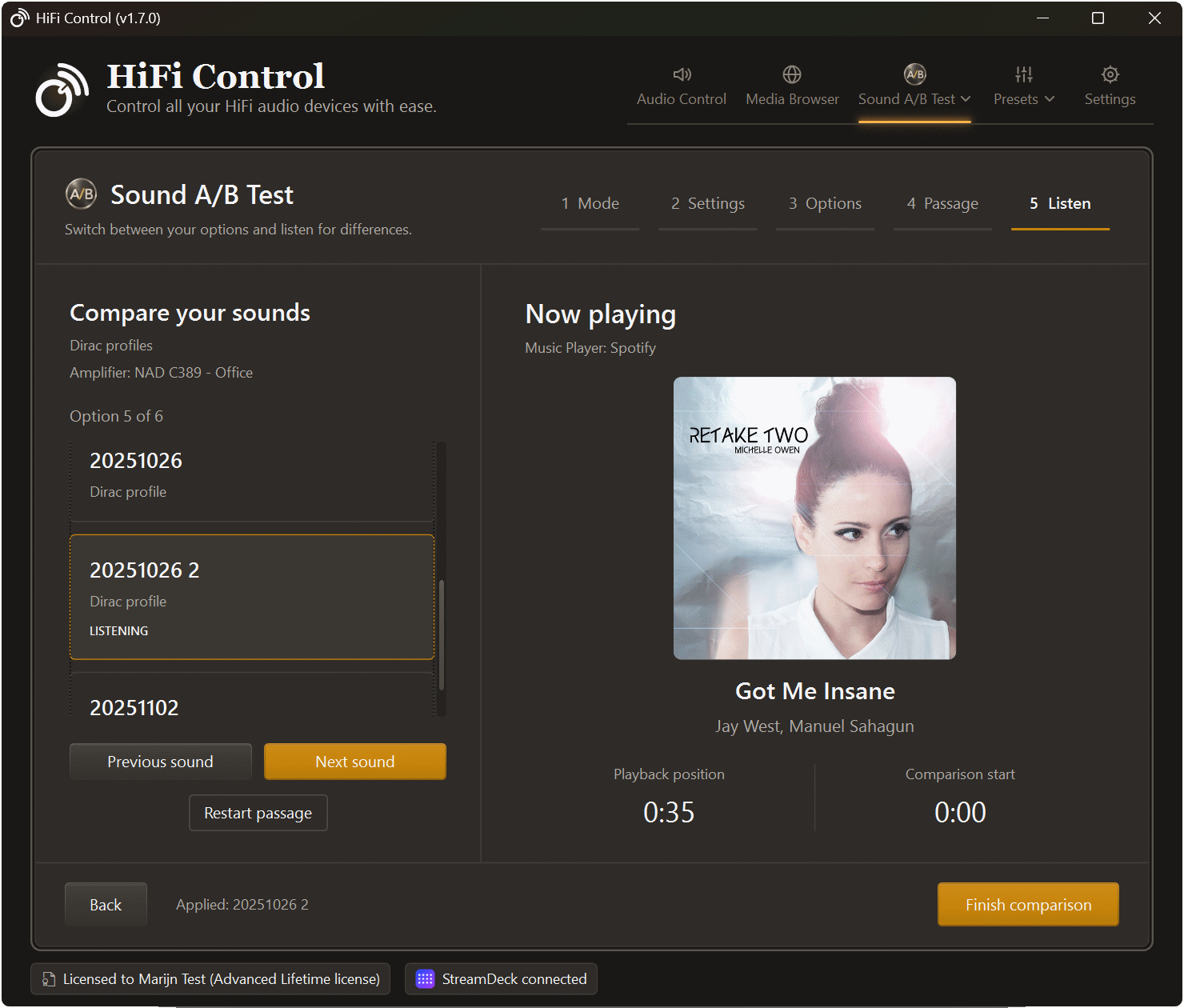
A Dirac profile comparison in progress. Switch between sounds while keeping the current track in view.
Your comparison setup is remembered for later use. Applying an option changes the device’s actual settings; finishing or closing the comparison does not restore the settings from before the session.
The tool does not automatically match loudness between options. Check your listening levels when comparing settings that change the output level.
Compare Dirac profiles
Section titled “Compare Dirac profiles”Enable Include Dirac Off to include the uncorrected signal alongside the selected profiles. Profiles must already have been created and transferred to the amplifier with Dirac’s calibration software.
If no profiles are available, check the selected amplifier in Audio Control. See Dirac Live for device requirements.
Compare saved Presets
Section titled “Compare saved Presets”By default, only each Preset’s Sound Control actions are applied. Presets without those actions are hidden. This lets you compare tone settings without also running the Preset’s input, power or playback actions.
Enable Run all Preset actions only when you want the complete sequence to execute on every switch. That can change devices, inputs, volume or playback, depending on what is saved in the Preset. Presets use the devices saved in their actions.
See Presets to create the sound setups first.
Build sound groups
Section titled “Build sound groups”In Sound Controls mode, use Add group to create one group for each sound you want to compare. Add the controls and target values for that group, such as Bass and Treble together.
Use the same controls in each group when you want a direct comparison: for example, explicitly set Bass and Treble in both a neutral group and a warmer group. Controls omitted from a group keep their current device values.
Edits stay local during setup. They reach the device when you start the comparison or activate a group. Arrange dependent adjustments in order, such as enabling tone controls before changing Bass. Use Refresh controls if the selected device or available controls have changed.
Repeat a passage
Section titled “Repeat a passage”Enter the Starting point as minutes and seconds, such as 0:30, or as seconds, such as 30. Use current position reads the position from a player that supports it.
With Restart after switching enabled, HiFi Control asks the selected player to seek back after applying an option. This depends on the player’s seeking support and the current source. For a player that cannot seek, clear the option and keep listening while the track continues.
The tool does not start playback for you. If it shows Playback is paused or stopped, Music Player is not connected, or Playback status unavailable, follow its link to Audio Control and check the selected player.