
Filtering Input Sources
Overview
Section titled “Overview”Amplifiers with the Input Selection capability report every input they physically have: HDMI 1, HDMI 2, Optical, Network, and so on. Most households only actually use two or three of these. Input source filtering lets you trim each amplifier’s Input Source control down to just the inputs you use, in whatever order makes sense to you, without changing anything on the amplifier itself.
This is a per-amplifier, HiFi Control-side preference. It doesn’t reconfigure the amplifier’s own inputs or firmware, it only changes what HiFi Control shows and offers as switchable.
Where to Configure It
Section titled “Where to Configure It”Each amplifier with the Input Selection capability shows an Input Source control on its device card. Click the gear (options) icon in the top-right corner of that control to open Configure Input Sources: a dialog listing every input the amplifier reports.
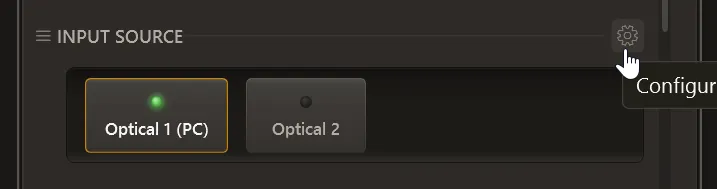
Because this lives on the device card, it’s configured per amplifier: two different amplifiers can show a different set of inputs, in a different order, from each other.
What You Can Do
Section titled “What You Can Do”Inside Configure Input Sources, each input can be:
- Shown or hidden: hidden inputs disappear from the Input Source selector, so only the inputs you actually use are one click away
- Reordered: drag inputs into whatever sequence is most convenient
These choices are saved automatically and persist across app restarts.
Effects
Section titled “Effects”The Input Source selector
Section titled “The Input Source selector”Hidden inputs are removed from the amplifier’s Input Source control entirely: they’re not shown greyed-out, they’re just not there. If the input currently active on the amplifier happens to be one you’ve hidden, the selector simply shows no highlighted input; it doesn’t stop the amplifier playing from that input, and switching to any visible input works normally.
Everywhere else the amplifier’s inputs are exposed
Section titled “Everywhere else the amplifier’s inputs are exposed”The filtering doesn’t just apply to that one selector: hidden inputs stay hidden everywhere HiFi Control surfaces the amplifier’s inputs. The Stream Deck integration is the clearest example of this: a hidden input never appears as a switchable button on a Stream Deck, so it can’t be triggered or accidentally selected from there either.
Why Use It
Section titled “Why Use It”- Fewer clicks for the inputs you actually use: no scrolling past four inputs you’ve never touched to reach the one you want.
- A cleaner, safer Stream Deck layout: only real, meaningful buttons for inputs you actually switch between, with no risk of a stray tap landing on an unused input.
- Per-amplifier customization: a media room amplifier and a bedroom amplifier can each show only what’s relevant to that room.
Related
Section titled “Related”- Audio Components: how HiFi Control models amplifier capabilities in general
- Global Hotkeys: the Select Next/Previous Input Source hotkeys cycle through the amplifier’s inputs
- Presets: the Select Input Source preset action targets a specific input on a specific amplifier