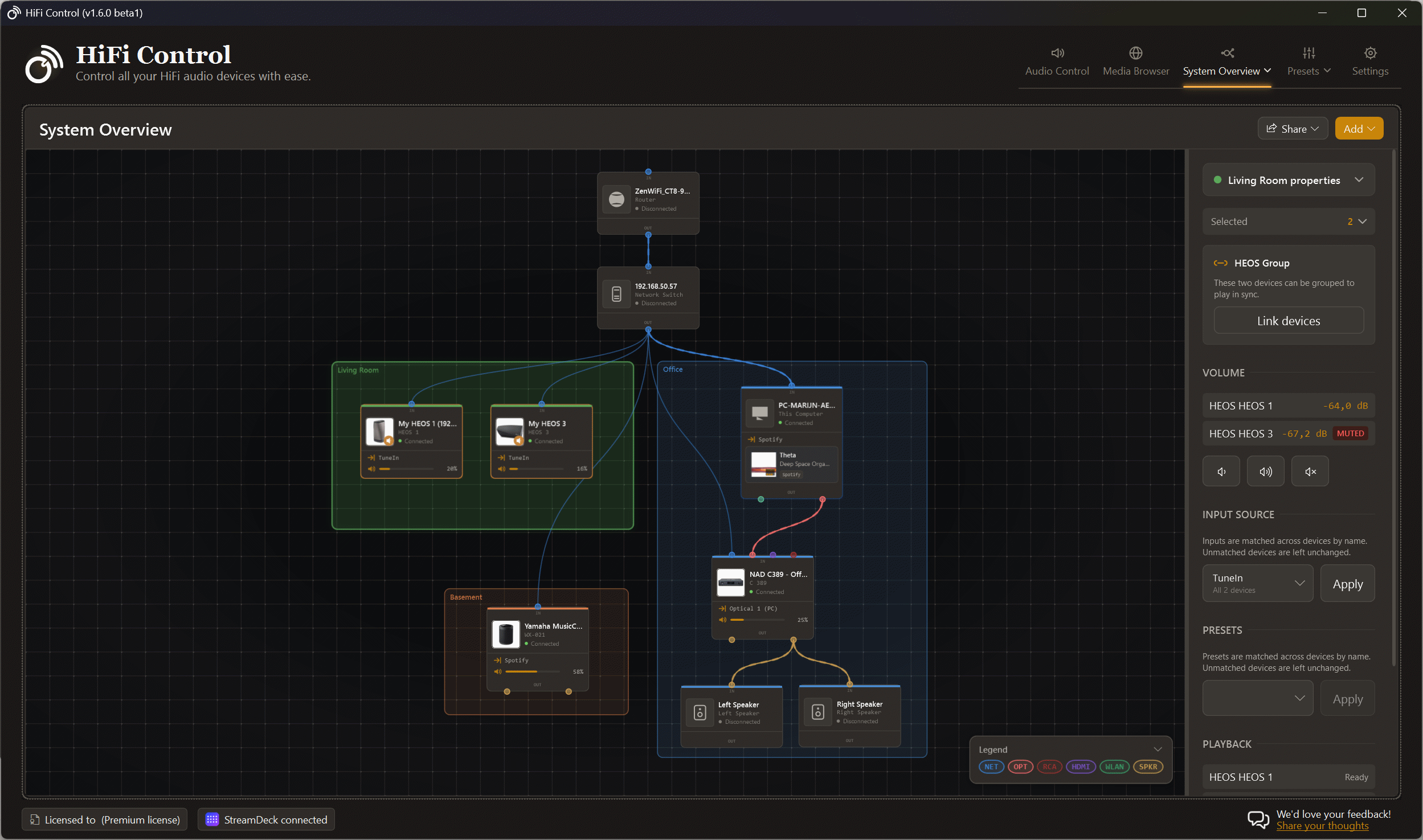
 Every device, every cable, one canvas
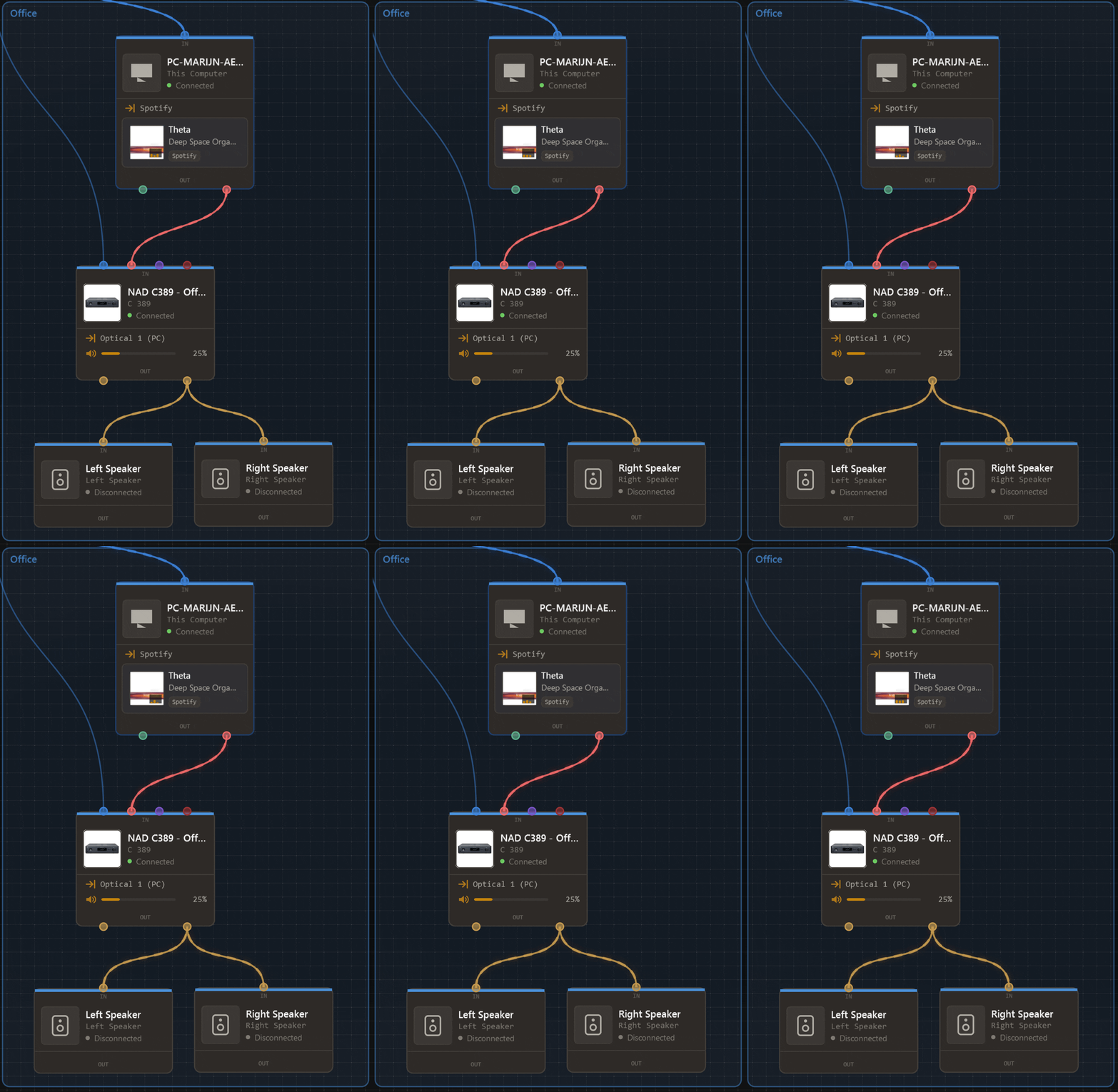 LiveActive signal path
A hi-fi system is rarely one box. There is a streamer, an amplifier, a pair of speakers, a network switch somewhere behind the TV, maybe a second player in the kitchen. HiFi Control could always control those devices, but it never showed you the system itself.
Version 1.6.0 introduces the System Overview: a visual map of your setup on a single canvas. It ships as an experimental feature in 1.6.0-beta1 and is available in every current edition, including Essentials, as well as Legacy Free.
Opening it
Where you find System Overview depends on your license.
With a Legacy Free license, System Overview has its own button in the main toolbar. Click System Overview to open it.

With a paid license, the additional tools are grouped together. Open the Tools menu and choose System Overview.
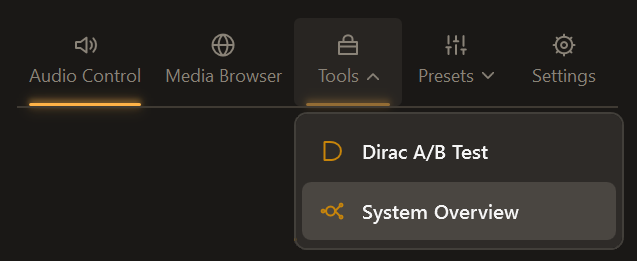
Both routes open the same full-screen canvas alongside the player.
The canvas
The canvas is a free-form workspace. Scroll to zoom between 40% and 250%, drag with the middle mouse button or the space bar to pan, and drag nodes to arrange them the way your system actually sits in the house. Positions are saved automatically, so the layout you build is the layout you get back next time.
Two toolbar buttons keep things tidy: Auto Layout distributes everything on a grid, and Zoom to Fit frames the whole system in the viewport.
Selection works the way you would expect from a diagram tool. Click a node to select it, Ctrl+click to add or remove nodes from the selection, or drag a rubber band across empty canvas to catch everything inside it.
Device cards
Every device on the canvas is a live card rather than a static icon. Depending on the device and what its plugin exposes, a card shows:
- Name, brand and model, with a product thumbnail where one is available
- A connection status badge (Connected, Connecting… or Disconnected) that updates in real time
- A volume indicator that follows the device as the level changes
- The active input and now-playing information
- Service badges for online services such as Spotify or TIDAL
- A room badge in the color of the room the card sits in
- An ecosystem badge for BluOS, HEOS, MusicCast, and so on
Devices appear on the canvas only after you put them there. Registering a device elsewhere in HiFi Control does not silently drop it into your diagram.
Auto-Detect
You do not have to build the diagram by hand. Auto-Detect scans your network in parallel for both audio components and network infrastructure:
- Audio components. Amplifiers and music players found through the discovery services of the active plugins, supplemented with your offline favorites.
- Network infrastructure. Your router and Ethernet switches (identified from the ARP table and vendor MAC prefixes), plus the local computer and other Windows machines on the network.
Pick what you want from the results and click Add to Canvas. HiFi Control then lays everything out in logical rows (cloud services, routers and switches, computers, streamers, amplifiers, speakers) and tries to wire it up for you.
The connection inference is careful on purpose. It only draws an edge when the topology is unambiguous, so you are not left cleaning up wrong guesses. Each device gets at most one network uplink, wired devices go to the switch and wireless ones to the router, and if your PC’s default audio output is digital it will infer an Optical or HDMI link to the amplifier whose matching digital input is active.
Filling in the rest of the system
Real systems contain plenty of gear that no network scan will ever find: passive speakers, a standalone DAC, a CD player, an unmanaged switch. Open Add → Add New Component Manually and place them yourself, choosing from network switches, amplifiers, DACs, music players, left and right speakers, or a blank custom component. A new manual node lands in the middle of your current viewport with its properties pane open, so you can rename it and pick an icon right away.
Then draw the cabling. Drag from one node’s output port to another node’s input port and pick the connection type: Network, Wireless, Optical, HDMI, RCA, USB or Speaker. Each type has its own line style and color, and a collapsible Legend in the bottom-right corner reminds you which is which. Ports are editable too, so you can add, rename, retype or remove the inputs and outputs of any selected component.
Click a connection line and the properties panel tells you the type, both endpoints and their ports, whether the connection is currently carrying signal, and why: which device is playing and which source is selected.
The signal path, live
Once the cabling is drawn, the canvas starts showing you where the music is going. The connections carrying audio right now are highlighted, and the highlight follows what your system is doing: press play and the path from source to speakers lights up, switch inputs and it moves.
It is source-aware, which is the part that makes it useful rather than decorative. An amplifier playing its Optical input lights up the optical path and the speaker wires but not its network cable. The network cable only lights up for network sources such as Spotify, TIDAL, AirPlay or internet radio.
Rooms
Overlay room rectangles on the canvas to group devices by where they are: Add → Add New Room, give it a name, then drag and resize it around the devices that live there. Each room gets an accent color from the room palette, and every device inside it picks up that color as a badge.
Rooms are also the fastest way to operate on a zone. Clicking a room selects the room and every device inside it, so turning the volume down in the kitchen is one click followed by one slider.
Room rectangles can even overlap, so a device can be part of more than one grouping. That opens up useful special cases: keep devices in their physical rooms while also drawing a larger “downstairs” or “party zone” across several of them, or create overlapping zones for an open-plan space that you sometimes control together and sometimes separately.
Controlling devices from the canvas
The right-hand panel adapts to whatever you have selected. One device gives you its identity, status and capability controls. Several devices give you a count, an expandable list, and controls that apply to all of them at once. That last case is the reason the panel exists: multi-device volume, playback and power from one place.
The panel is extensible. Features contribute their own controls, so it gains capabilities as plugins do, without the System Overview needing to know about them.
DeviceLink: seeing your multi-room groups
DeviceLink is the part I am most pleased with. BluOS Grouping, HEOS Groups and MusicCast Link all do the same thing, synchronizing playback across players, and all of them are invisible unless you open the manufacturer’s own app.
On the System Overview canvas, active groups are drawn as animated lines between the grouped devices, styled differently from physical cabling so you can tell a proprietary group from a speaker wire at a glance. Links are re-queried when the canvas opens, whenever a device connects or disconnects, and after you change a group yourself.
Select exactly two devices that use the same link technology and the panel shows a DeviceLink section with the technology name, the current link status, and a single Link or Unlink button. If the device refuses the operation, the panel tells you what it reported instead of failing silently. Select devices from different ecosystems and you get a warning rather than a confusing error.
Supported today: BluOS Grouping, HEOS Group and MusicCast Link. Other technologies can be added by plugins without touching the System Overview itself.
Share your setup
Hi-fi people like showing their systems. The Share dropdown exports the entire overview, including the parts currently outside the viewport, as a high-resolution PNG with a subtle HiFi Control logo and URL in the corner. The branding switches between a light and dark treatment based on the background behind it, so it stays legible either way.
- Copy Image puts a real bitmap on the clipboard, so WhatsApp and similar apps treat it as an inline image instead of a file attachment.
- Save Image as PNG… writes it to disk.
- Share on Facebook, X, LinkedIn, WhatsApp or Reddit copies the image and opens the platform’s share page, ready for a Ctrl+V.
What you can do with it
Some of what it is good for:
- Document your system. One diagram that shows what you own, how it is connected, and where it lives. It survives restarts, so it can become the reference you actually keep up to date.
- Troubleshoot faster. A disconnected device is visible immediately, and connection highlighting shows which path is carrying signal. Useful when the amp is silent and you are not sure whether the streamer, the cable, or the input selection is at fault.
- Operate whole zones. Select a room, adjust everything in it. No hopping between control cards.
- Manage multi-room groups visually. See which players are grouped and regroup them with one click, across BluOS, HEOS and MusicCast, without opening three different apps.
- Plan changes. Add a manual node for the DAC you have not bought yet and draw where it would go before ordering cables.
- Show it off. Export and post it.
How it compares to Roon and other tools
Doesn’t Roon already do this? Not quite, and it is worth explaining where the lines fall.
Roon
Roon’s visualization is the Signal Path: for the zone playing right now, it shows the chain from source file through every conversion and DSP step to the output device, color-coded by how much processing happened along the way. It is very good at that, and it is a view of a stream, one playback chain at a time, concerned with bit depth, sample rate and DSP. Roon also has zones and zone grouping, so synchronized multi-room playback across Roon Ready endpoints is a solved problem there.
What Roon does not do is draw your system. There is no canvas of boxes and cables, no view of your switch and router, no picture of the passive speakers or the DAC that isn’t a Roon endpoint.
The two products also start from different places. Roon is library-first: it wants to own your music collection and stream to Roon Ready or RAAT endpoints, on a subscription. HiFi Control is device-first: it speaks BluOS, HEOS and MusicCast natively, controls the amplifier, its inputs and Dirac, and includes System Overview in every edition. If you run Roon, the two sit side by side happily. Roon tells you what is happening to the bits; the System Overview tells you what your system is.
draw.io, Visio and friends
draw.io and ConceptDraw will give you a far prettier diagram than HiFi Control ever will, with any symbol library you like. For the drawing half of this feature they are the honest comparison, and they win.
They also produce dead pictures. Nothing on that canvas knows whether the streamer is online, what is playing, or how loud it is, and nothing updates when you change the input. You do that by hand, for as long as you can be bothered. The System Overview gives up drawing flexibility in return for live data and control: the boxes are the actual devices, and clicking one changes your volume.
Home Assistant (with Music Assistant)
The closest thing to a live diagram of your audio gear with control attached is a Home Assistant dashboard, usually a floor-plan view with media player cards, plus Music Assistant for multi-room grouping. It is live, it is controllable, and it reaches far beyond audio into lights, sensors and automations.
The catch is that you build all of it. The floor plan is a background image you draw somewhere else and overlay with entities you configure yourself, on top of a home-automation server you run and maintain. If you already live in Home Assistant, that is the right answer. The System Overview is for the case where you just want the map: install, click Auto-Detect, and your system is on screen a minute later, with amplifier-level control that generic media-player entities often don’t expose.
Side by side
| Live device status | Diagram of the system | Control from the view | Setup effort | |
|---|---|---|---|---|
| HiFi Control System Overview | Yes | Yes, auto-generated | Yes, incl. multi-device | Auto-Detect |
| Roon | Per-zone signal path | No | Yes, playback and zones | Moderate, subscription |
| draw.io / Visio / ConceptDraw | No | Yes, hand-drawn | No | Manual, ongoing |
| Home Assistant + Music Assistant | Yes | Floor plan, hand-built | Yes | High, self-hosted |
Licenses and view-only devices
The canvas is included in every edition and holds as many devices as you like. Control still follows your license’s stored-device limit: Essentials and Legacy Free store one device, Advanced and Advanced — Lifetime License store three, and Premium is unlimited. The 14-day trial uses the Essentials feature set, so it has the same one-saved-device control limit. Other devices on the canvas remain view-only.
Devices on the canvas that are not among your stored favorites are view-only. They still connect, and their cards still show live status, volume, active input and now-playing information. What you do not get for them is operational controls. A view-only card is marked with a small pill, and when your selection contains one the panel explains why.
If your license still has room, that notice includes an Add to my devices button. One click stores the device as a favorite and the controls appear immediately. Once the limit is used up, the notice links to the upgrade options instead. Either way it re-evaluates live, so changing your license or your favorites takes effect without a restart.
Try it
The System Overview is an experimental feature, which means I expect to change things based on what you tell me. Download, run Auto-Detect, and see how close it gets to your actual setup.
What did it miss? What would make it the diagram you keep open on a second screen? Let me know.
Ready to take control?
v1.6.4 · October 8, 2026 · 65 MB · Windows 10/11
Download HiFi ControlEssentials is €14.99 once · 14-day trial · No card required